

- Allow Chrome notifications from system settings
- Go to "Notifications and Action Settings", type "notifications" in your system search and you will see it in the search results
- Scroll down to the section with the heading Get Notifications From These Senders
- In Get Notifications From These Senders section, find and select Google Chrome

- Once inside Google Chrome notification settings, turn on the following:

- Allow App notifications from Chrome settings
- Go to app.beetexting.com
- Select the lock or information icon to the left of the URL

- Select "Site Settings"

- Allow notifications from the permissions list

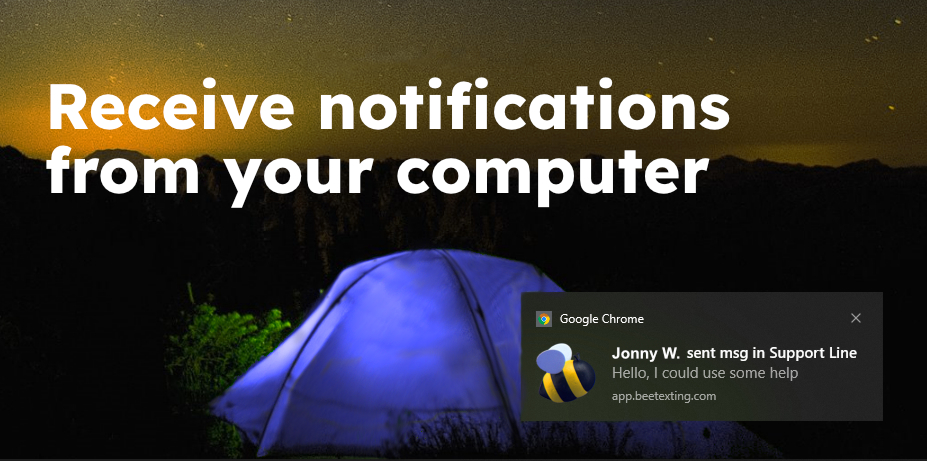
Turn on Desktop Notifications – Chrome
Reading Time: 2 minutes
Related Posts

Follow Up Boss
What is Follow Up Boss? Follow Up Boss is more than your […]

Salesforce
What Is Salesforce? Salesforce is the world’s most trusted customer relationship management […]

HubSpot
Connect HubSpot with Beetexting Bring professional business texting into your HubSpot CRM […]

SMS Compliance Checklist: TCPA & Consent Essentials for Business Texting (2026)
Business texting works - and that's exactly why regulators and plaintiffs' attorneys […]